
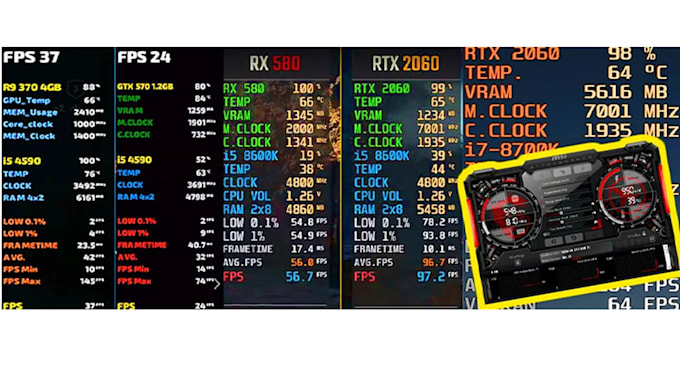
Start with a small OSD bundle
FPS + frametime + GPU temperature + power limit indicator is enough for most tuning sessions. Too many graphs increases noise and cognitive load.
Per-game profiles save sanity
Some titles need exceptions for injection modes or incompatible fullscreen paths. Learn to duplicate a baseline profile and tweak only what differs.
Scanline sync: advanced, not mandatory
Scanline sync attempts to align frame presentation with display scanning to reduce tearing sensations in some setups. It is highly setup-dependent; treat it as experimentation, not a universal “enable for +FPS” switch.
Anti-cheat and overlays
Some online titles block overlays entirely. Respect that: use after-action log review or vendor tools where required.
Next steps
If overlays look good, return to thermal tuning: overlays often reveal power-limit throttling you can address with airflow or conservative curves.
Elsewhere on this site
Keep context when you leave this page
Long guides read best with the FAQ for quick recovery steps and the glossary for vocabulary. The home page links the full screenshot tour and download reminders.